MoneyWorks allows businesses to customise invoice layouts, purchase orders, statements, reports and other documents according to their operational requirements.
When you create or modify a custom form or report on your computer, the file is initially stored locally. If your company uses MoneyWorks Datacentre, you must upload the customised file to the server before other users can receive and use it.
This guide explains how to locate, sign and upload custom MoneyWorks templates.
What Is a MoneyWorks Custom Template?
A custom template is a form, report or related file that has been created or modified to meet your company’s requirements.
Common examples include:
- Sales invoice layouts
- Purchase order forms (PO)
- Customer statements
- Quotations
- Delivery orders (DO)
- Custom financial or management reports
- Import maps
- Company logos and document images
- MoneyWorks scripts
MoneyWorks generally stores customised files inside the MoneyWorks Custom Plug-Ins folder.
What Is the MoneyWorks Custom Plug-Ins Folder?
The MoneyWorks Custom Plug-Ins folder stores customised resources that are associated with your MoneyWorks company file.
Depending on the features being used, the folder may contain subfolders for:
- Forms
- Reports
- Import Maps
- Pictures
- Scripts
Do not save your customised reports or forms inside the MoneyWorks Standard Plug-Ins folder. Standard plug-ins are installed with MoneyWorks and may be replaced when the software is updated.
How to Create or Open the Custom Plug-Ins Folder
MoneyWorks normally creates the Custom Plug-Ins folder automatically when you create or save a custom form or report.
You can also access it from the MoneyWorks Navigator:
- Open the relevant MoneyWorks company file.
- Go to the Housekeeping section of the Navigator.
- Locate the area for managing reports, forms or plug-ins.
- Open or create the MoneyWorks Custom Plug-Ins folder.
- Save your customised file in the appropriate subfolder.
For example, a customised invoice form should be saved under the relevant Forms folder, while a reusable custom report should be placed in the Reports folder.
Why Must a Template Be Signed?
MoneyWorks reports and forms can retrieve information from the accounting database. Signing helps administrators control which users are authorised to use specific customised files.
A MoneyWorks administrator can sign a form or report for selected users. Users who have permission to use unsigned forms and reports may not require the file to be signed.
Signing is associated with:
- The selected MoneyWorks company file
- The specified report or form
- The authorised MoneyWorks user
If a signed form or report is modified later, its existing signature becomes invalid. The updated file must be signed again before restricted users can use it.
How to Sign a Custom MoneyWorks Template
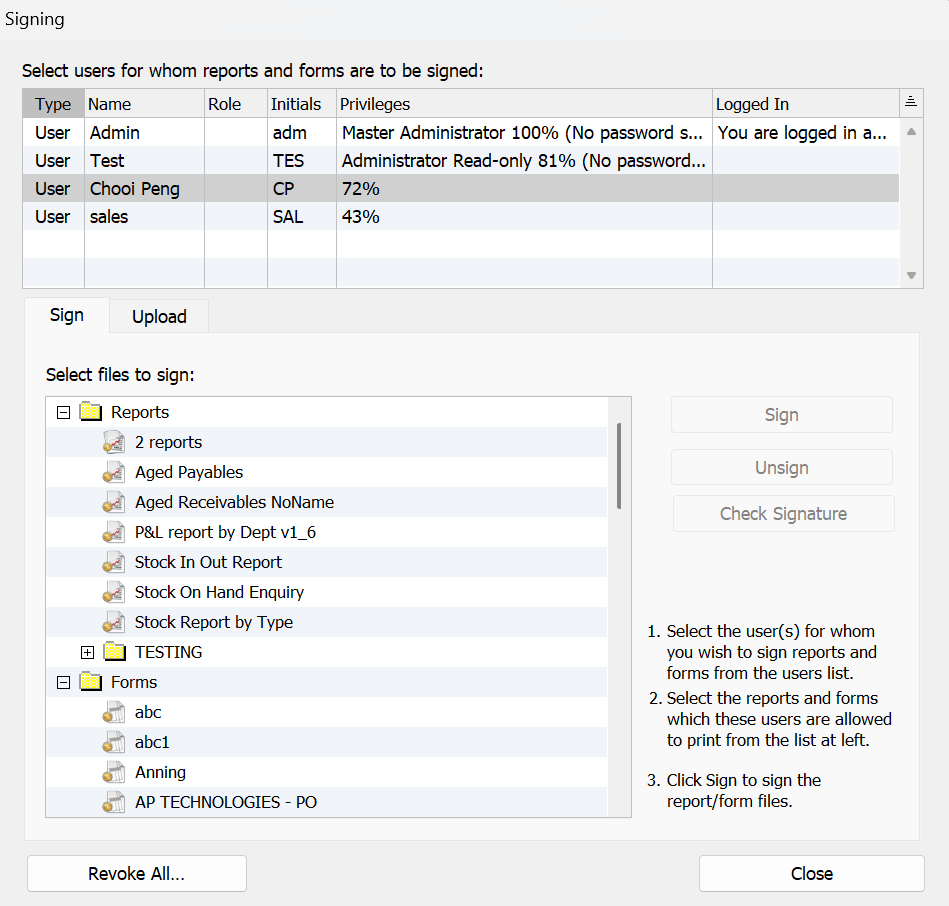
Follow these steps using an administrator account:
- Open the relevant company file in MoneyWorks.
- Select File from the top menu.
- Open Users & Security.
- Click the Signing button.
- Select the users who should be allowed to use the template.
- Select the custom form or report you want to authorise.
- Click Sign.
You can use the Check Signature option to confirm which users have been authorised to use the selected file.
How to Upload a Template to MoneyWorks Datacentre
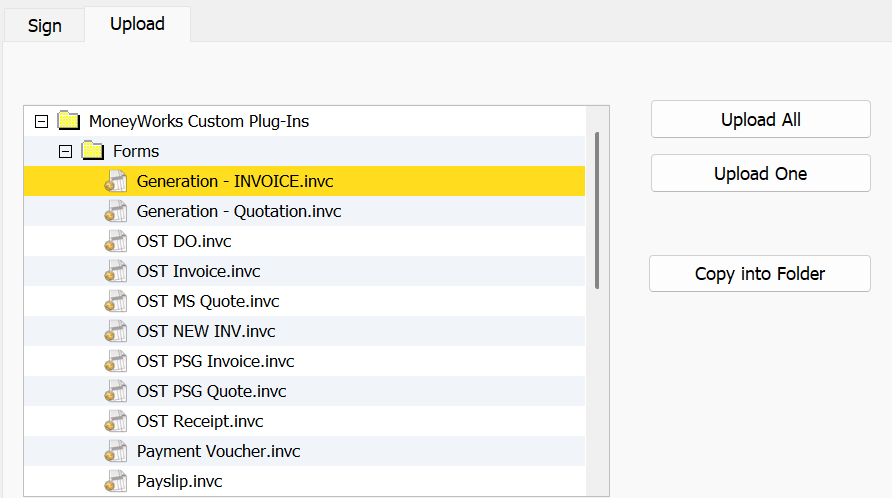
After signing the custom form or report, upload it to the Datacentre server:
- Go to File > Users & Security.
- Click Signing.
- Open the Upload tab.
- Select the custom form or report.
- Click Upload One to upload only the selected file.
Once the upload is complete, the Datacentre server will distribute the updated custom plug-in to users when they next connect to the company file.
Upload One Versus Upload All
The Signing window provides two upload options.
Upload One
Use Upload One when you have changed only one form or report.
For example, choose this option after updating:
- One invoice layout
- One purchase order form
- One customer statement
- One management report
This reduces the risk of replacing other server files unnecessarily.
Upload All
Use Upload All when you intentionally want to upload the entire MoneyWorks Custom Plug-Ins folder.
This may include multiple:
- Forms
- Reports
- Scripts
- Import maps
- Pictures
Take care when using Upload All. The uploaded Custom Plug-Ins folder may replace the existing folder on the server rather than simply adding the changed files.
Before uploading the complete folder, confirm that your local Custom Plug-Ins folder contains all the current files required by other users.
Important: Before using Upload All, back up the existing Custom Plug-Ins folder and confirm that your local folder contains every form, report, script, import map and picture required by users.
What Happens After the Upload?
When users next connect to the shared MoneyWorks company file, MoneyWorks Datacentre provides them with the custom plug-ins stored on the server.
The uploaded version will normally replace the corresponding local copy supplied through that Datacentre connection.
Ask the user to close and reopen the company file if the updated template does not appear immediately.
Frequently Asked Questions
Where are custom MoneyWorks forms and reports stored?
They are normally stored in the MoneyWorks Custom Plug-Ins folder associated with the company file or Datacentre connection.
Can I share a customised invoice with other MoneyWorks users?
Yes. In a MoneyWorks Datacentre environment, you can sign the invoice form for the required users and upload it to the server.
Do I need to upload the template again after editing it?
Yes. Changes invalidate the existing signature. Sign the revised file again and upload the latest version to the server.
Should I use Upload One or Upload All?
Use Upload One for an individual changed form or report. Use Upload All only when you deliberately need to replace or update the complete Custom Plug-Ins folder.
Can customised templates be distributed automatically?
When uploaded to MoneyWorks Datacentre, custom plug-ins are distributed to users when they connect to the hosted company file.
Need Help Customising MoneyWorks?
Ostendo Asia provides assistance with:
- MoneyWorks invoice and document customisation
- Custom reports
- Datacentre configuration
- User access and security
- Data migration
- MoneyWorks implementation and training
- Workflow automation and integrations
Contact Ostendo Asia for help creating, modifying or deploying customised MoneyWorks forms and reports.