
InvoiceNow allows Singapore businesses to send and receive invoices electronically through the nationwide Peppol e-Invoicing network. Instead of emailing only a PDF and requiring the recipient to re-enter the details, an InvoiceNow invoice is transmitted as structured data from the supplier’s accounting software to the customer’s accounting system.
MoneyWorks supports e-Invoicing through Link4, its Peppol Access Point provider. It also includes GST InvoiceNow functions for transmitting relevant invoice data to the Inland Revenue Authority of Singapore (IRAS).
This guide explains how to enable e-Invoicing, create and connect your Link4 account, configure the required settings, activate GST InvoiceNow and test the setup in MoneyWorks.
What Is InvoiceNow?
InvoiceNow is Singapore’s nationwide e-Invoicing network. It uses the international Peppol standard to allow businesses to exchange invoices in a structured digital format, even when the sender and recipient use different accounting applications.
InvoiceNow is not simply an emailed PDF invoice. The invoice information is transmitted as structured data through the Peppol network. A PDF copy may still be attached when required.
- Reduce manual invoice entry
- Minimise data-entry errors
- Speed up invoice processing
- Receive supplier invoices electronically
- Track the delivery of e-Invoices
- Support GST InvoiceNow compliance
- Improve accounts payable and receivable workflows
MoneyWorks e-Invoicing and GST InvoiceNow
MoneyWorks e-Invoicing
The e-Invoicing service allows you to send invoices to participating customers and receive invoices from participating suppliers through the Peppol network. MoneyWorks provides this service through Link4, and a Link4 account is required before you can send or receive e-Invoices.
GST InvoiceNow
GST InvoiceNow supports the transmission of invoice data to IRAS. When an e-Invoice is sent through MoneyWorks, the relevant invoice data can also be transmitted to IRAS. MoneyWorks can also assist with submitting qualifying transactions that were not sent as e-Invoices, such as certain business-to-consumer transactions or invoices involving businesses not registered on the InvoiceNow network.
You must configure MoneyWorks e-Invoicing before activating GST InvoiceNow.
Who Needs to Prepare for GST InvoiceNow?
IRAS is introducing the GST InvoiceNow Requirement progressively for GST-registered businesses. Businesses should check the implementation date that applies to them and prepare before the requirement becomes mandatory.
Activating InvoiceNow does not replace normal GST responsibilities. Businesses must continue to maintain proper accounting records and verify the accuracy of transactions recorded in their accounting system.
Before You Start
Prepare the following information before setting up InvoiceNow:
- Company Unique Entity Number (UEN)
- Company registered name and business information
- Valid business email address
- MoneyWorks administrator access
- Latest available MoneyWorks version
- Appropriate GST and tax codes in the MoneyWorks file
- Default supplier, item and general ledger codes
- Customer and supplier UENs where applicable
Create a backup of the MoneyWorks company file before making significant configuration changes.
Step 1: Enable the MoneyWorks e-Invoicing Service
- Open the relevant company file in MoneyWorks.
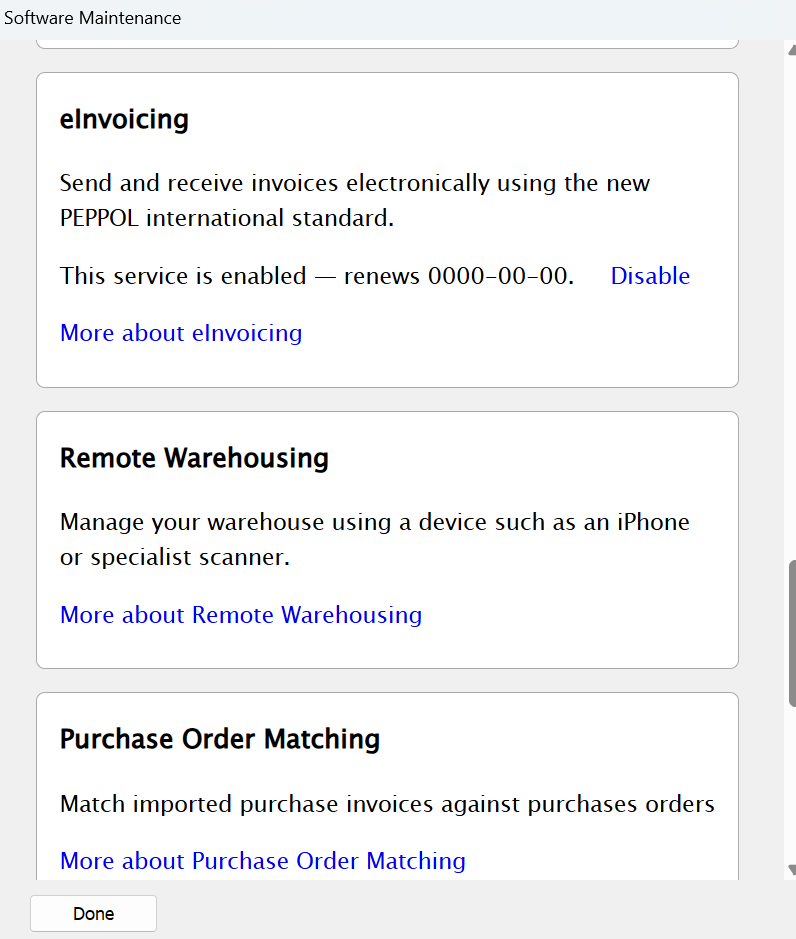
- Go to File > Manage Services.
- Locate the e-Invoicing service, select More about e-Invoicing, and click Enable.
- Close and reopen the MoneyWorks company file. The e-Invoicing service is loaded the next time the file is opened.
- The service is enabled separately for each MoneyWorks company file.
Step 2: Create a Link4 Account
- Go to Command > eInvoice Login. Depending on the MoneyWorks version, it may appear as E-Invoice Login.
- Click Create an Account. You do not need to enter a username or password before selecting this option.
- Select Singapore as the country and complete the registration process.
- Provide the company name, Singapore UEN, contact details, business email address and requested verification documents.
- Wait for Link4 to verify and approve the company account.
Step 3: Log In and Authorise MoneyWorks
- Return to Command > eInvoice Login after the Link4 account has been approved.
- Enter the Link4 username and password, then click Sign In.
- Authorise MoneyWorks to access the Link4 account when prompted.
- MoneyWorks normally renews the login automatically, so repeated sign-in should not be required.
Step 4: Configure the e-Invoice Settings
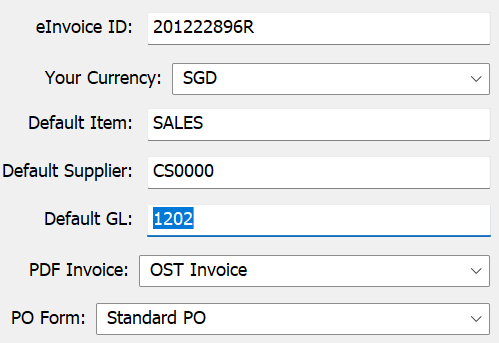
- Go to Command > eInvoice Settings.
- Enter the company UEN as the e-Invoice ID. It must match the UEN used for Link4 registration.
- Select the normal business currency, such as SGD.
- Select a default supplier for invoices whose supplier cannot be identified automatically.
- Select a default item for invoice lines that cannot be matched to an existing product.
- Choose a default general ledger account for unmatched invoice lines.
- Select a PDF invoice form if a PDF representation should be attached, or select None.
- Select the correct MoneyWorks tax codes for lines with GST and without GST.
- Click OK to save the settings.
Step 5: Activate GST InvoiceNow
- Open Command > eInvoice Settings.
- Select Enable InvoiceNow and click OK.
- Go to Command > InvoiceNow to open the InvoiceNow Management window.
- Click Initiate. MoneyWorks will submit an activation request and an email will be sent with further instructions.
- Check your business email for an automated activation message containing a secure link.
- Click the link within the email. You will be redirected to log in via the CorpPass Portal using your Singpass app. Complete the verification or authorisation steps in the email.
- After receiving confirmation, return to Command > InvoiceNow and click Enable.
- The activation email alone is not the final step. InvoiceNow must also be enabled inside MoneyWorks.
Step 6: Add Customer and Supplier UENs
- Open the MoneyWorks Names list and locate the relevant customer or supplier.
- Double-click the name and open the Bank and EDI tab.
- Enter the organisation’s UEN in the eInvoicing ID field.
- Click OK to save the record.
- Confirm every UEN directly with the customer or supplier before saving it.
Step 7: Upload Customer and Supplier Information
- Highlight the participating customer or supplier in the Names list.
- Click the Update Link4 toolbar button.
- Confirm that the record contains both an e-Invoicing ID and an email address.
- Uploading approved supplier information helps reduce the risk of receiving fraudulent invoices from unknown parties.
Step 8: Send a Test e-Invoice
- Create a customer invoice in MoneyWorks as usual.
- Verify the customer legal name, UEN, invoice number, invoice date, GST information, GST rate, line details, payment terms and total amount.
- Use the MoneyWorks e-Invoice function to transmit the invoice.
- Check the Link4 dashboard or MoneyWorks transaction status to confirm successful transmission.
- Ask the customer to confirm that the invoice was received correctly in their accounting system.
Step 9: Receive a Test Supplier e-Invoice
- Use the e-Invoice retrieval function in MoneyWorks.
- Retrieve the supplier invoice and review the resulting MoneyWorks purchase transaction.
- Verify the supplier name and UEN, invoice number, date, purchase order reference, products or expense accounts, GST codes, GST amount and total payable.
- Check that the transaction is not a duplicate.
- Do not post the invoice until the coding and approval have been verified.
Using the Link4 Dashboard
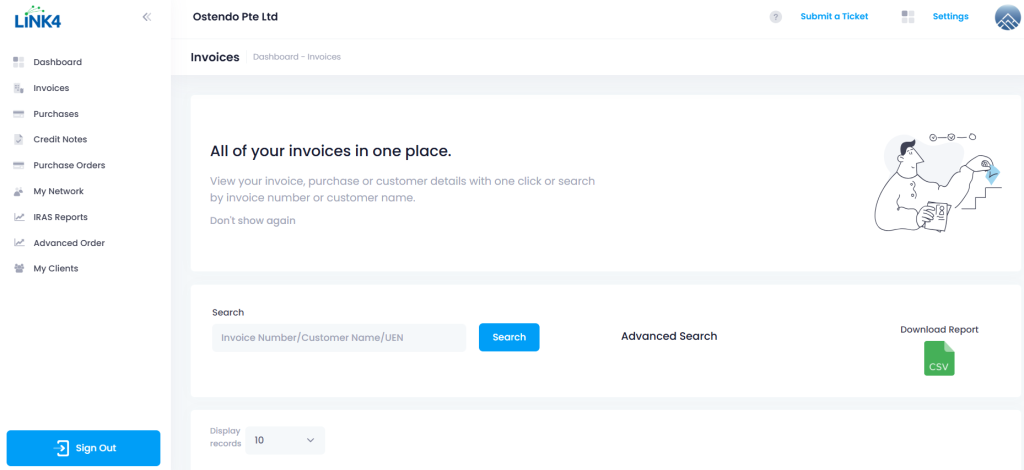
Open the Link4 dashboard through Command > eInvoice Login. The dashboard can be used to:
- Monitor e-Invoice activity
- Check customer registration status
- View unretrieved supplier invoices
- Invite customers to use e-Invoicing
- Review transmission information
- Manage aspects of the Link4 account
Prefer a Video Guide? Watch the Complete InvoiceNow Setup Tutorial
Recommended Controls After Activation
After activation, establish an internal procedure covering:
- Who may change InvoiceNow settings
- Who may update customer and supplier UENs
- Who reviews imported supplier invoices
- Who approves e-Invoices before transmission
- How rejected and duplicate invoices are handled
- How non-e-Invoiced transactions and IRAS submissions are reviewed
- How Link4 account access is controlled
Common InvoiceNow Setup Problems
| Problem | What to Check |
| The e-Invoicing option does not appear | Confirm that the service was enabled under File > Manage Services, the file was closed and reopened, the company file is registered and MoneyWorks is updated. |
| InvoiceNow cannot be enabled | Check that the Link4 account is approved, the UEN matches, the e-Invoice settings are complete, the activation email steps were completed and Enable was clicked in MoneyWorks. |
| A customer cannot receive the e-Invoice | Verify that the customer is registered on InvoiceNow and that the correct UEN is stored in the eInvoicing ID field. |
| A supplier invoice uses the default supplier or item | MoneyWorks could not match the received information. Correct the supplier, product, account, tax code and GST amount before posting. |
| The Link4 login is not working | Confirm the credentials and repeat authorisation if the password changed, access was revoked, or the MoneyWorks file was moved or restored. |
| The invoice has not reached IRAS | Confirm that GST InvoiceNow is fully activated, the transaction qualifies, it was not already submitted and the invoice data is complete and valid. |
InvoiceNow Setup Checklist
☐ MoneyWorks is updated
☐ MoneyWorks company file is backed up
☐ e-Invoicing service is enabled
☐ Company file has been closed and reopened
☐ Link4 account has been created and approved
☐ MoneyWorks is authorised to access Link4
☐ Company UEN is entered correctly
☐ Default currency, supplier, item and ledger account are configured
☐ GST and non-GST tax codes are selected
☐ GST InvoiceNow activation has been initiated
☐ Activation email instructions are completed
☐ InvoiceNow is enabled in MoneyWorks
☐ Customer and supplier UENs are updated
☐ A test customer e-Invoice has been sent
☐ A test supplier e-Invoice has been received
☐ Internal review and approval procedures are documented
Need Help Setting Up InvoiceNow in MoneyWorks?
Although the individual steps are straightforward, the company UEN, GST codes, default accounts, customer records and Link4 registration must all be configured correctly. An incorrect setup may result in rejected invoices, incorrect customer identification, miscoded supplier invoices or incomplete GST InvoiceNow submissions.
Ostendo Asia can assist with:
- Checking your MoneyWorks version
- Enabling the e-Invoicing service
- Configuring MoneyWorks e-Invoice settings
- Assisting with Link4 registration
- Activating GST InvoiceNow
- Updating customer and supplier records
- Performing test transmissions
- Training your accounts team
- Troubleshooting rejected or unsuccessful e-Invoices
Contact Ostendo Asia for assistance with setting up and testing InvoiceNow in your MoneyWorks company file.
Frequently Asked Questions
Is InvoiceNow the same as emailing a PDF invoice?
No. InvoiceNow transmits invoice information as structured data through the Peppol network. A PDF may be included, but the PDF itself is not the main e-Invoice.
Do my customers need to use MoneyWorks?
No. A customer may use another InvoiceNow-ready accounting or finance system. Peppol enables invoices to be exchanged between participating systems.
What is the InvoiceNow ID for a Singapore company?
For Singapore companies, the identifier is normally the company UEN.
Can I send an e-Invoice to every customer?
You can send directly only to customers registered on the InvoiceNow network whose correct e-Invoicing ID has been entered in MoneyWorks.
Is a Link4 account required?
Yes. MoneyWorks uses Link4 as its e-Invoicing Access Point provider.
Does InvoiceNow remove the need to keep GST records?
No. Businesses must continue to comply with normal GST record-keeping and reporting requirements.
Must every MoneyWorks company file be configured separately?
Yes. MoneyWorks Services and related settings are enabled for each individual company file.
Should I update MoneyWorks before setting up InvoiceNow?
Yes. Use the latest available MoneyWorks version to obtain current service functions and fixes.
