
If you use MoneyWorks, you may have already heard the news: MoneyWorks 9.2.5 introduces optional AI support for MoneyWorks Gold and MoneyWorks Datacentre. This is one of the most important updates for MoneyWorks users because it allows selected AI tools to work with your accounting data and help you complete practical tasks faster.
For Singapore SMEs, this is not just a technology trend. It can help reduce manual work, speed up reporting, support better business analysis, and make accounting data easier to understand.
In this article, you will learn
- What MoneyWorks AI is and how it connects to your MoneyWorks data
- How access, privacy, and user permissions are controlled
- What it costs to use MoneyWorks AI
- Real examples of what MoneyWorks AI can do
- Why this matters for Singapore SMEs
- How to get started safely
What Is MoneyWorks AI?
MoneyWorks AI is a new capability introduced in MoneyWorks 9.2.5. It allows MoneyWorks Gold or MoneyWorks Datacentre to connect with a supported AI assistant through a local MCP, or Model Context Protocol, connection.
In simple terms, the AI works like a smart assistant beside your MoneyWorks file. Instead of manually searching through reports, exporting data to Excel, or building charts from scratch, you can ask questions in plain English and let the AI help you retrieve, analyse, or prepare information from MoneyWorks.
For example, you may ask:
“In MoneyWorks, please analyse sales for the last three months and show the top 10 customers.”
“In MoneyWorks, prepare a management summary for June based on the Profit and Loss report.”
“In MoneyWorks, find all unpaid invoices for this customer.”
MoneyWorks AI should be treated as an assistant, not a replacement for your accounts staff or accountant. It can help speed up repetitive and time-consuming work, but the final review and decision should still be done by a responsible user.
How Your Data Is Protected
For most SME owners, the first question is usually: is this safe? MoneyWorks AI includes several important controls that are useful to understand.
1. AI is switched off by default
MoneyWorks AI is optional. It does not automatically turn on after the update. A business must deliberately enable it before users can start using AI with MoneyWorks.
2. Access is controlled by MoneyWorks user privileges
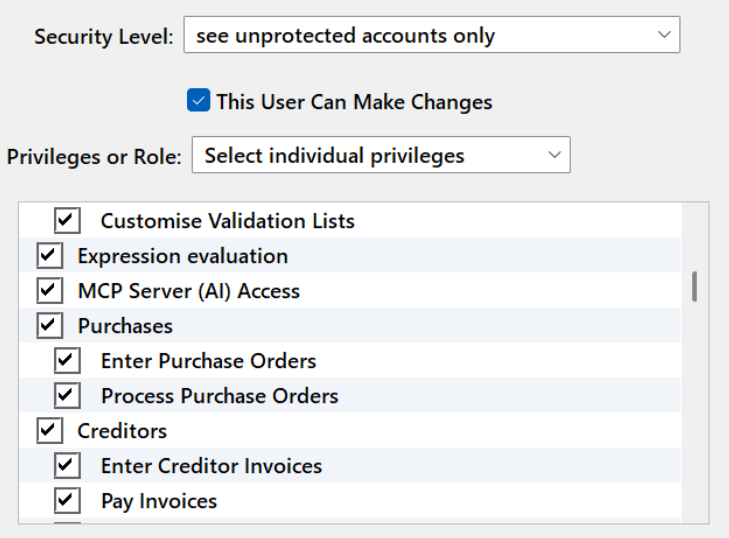
MoneyWorks 9.2.5 introduces a specific privilege called MCP Server (AI) Access. Only users who are granted this privilege can use the AI connection.
For most SMEs, this access should be limited to trusted users, such as the business owner, finance manager, accountant, or senior accounts staff.
3. The AI only sees what the logged-in user can already access
The AI does not create a new level of access. If a MoneyWorks user is restricted from certain reports, transactions, or data, the AI should also be restricted by the same user permissions.
4. The MCP connection runs locally on the desktop
Cognito explains that the MCP connection from MoneyWorks to the AI app runs entirely on the user’s desktop. The connection to the AI provider’s servers is encrypted. Businesses should still review the privacy settings of the AI provider they choose to use.
What Does It Cost?
There is no additional charge to use the AI option in MoneyWorks. I have tested the feature using Claude from Anthropic, and many useful tasks can be tested using Claude’s free plan.
However, businesses should note that AI provider plans may change over time. If your business uses a paid AI subscription or a different AI provider, that cost will be separate from MoneyWorks.
Ostendo Solution can help customers configure the setup correctly, but the availability and cost of the AI provider should be checked based on your selected AI service.
What Can MoneyWorks AI Actually Do?
MoneyWorks AI becomes useful when it helps you do things that normally require manual report checking, data entry, exporting, filtering, or spreadsheet work. Below are practical examples.
Prepare a management or board report
You can ask AI to prepare a board report or management summary for a specific month based on your MoneyWorks data. This can save time before management meetings and help business owners understand key movements more clearly.
Create purchase invoices from PDF supplier invoices
One powerful use case is asking AI to read supplier invoice PDFs and prepare purchase invoices in MoneyWorks. This can be useful when invoices arrive as scanned documents, printed PDFs, receipts, or email attachments.
This will be covered in the next article.
Create sales invoices from Excel files
Many SMEs still receive sales order details or billing information in Excel. With AI, you may be able to use an Excel file as the source and ask AI to help prepare sales invoices in MoneyWorks.
This is especially useful for businesses that frequently copy customer, item, quantity, and price information from spreadsheets into accounting software.
Analyse sales by customer, product, or region
You can ask AI to analyse sales by customer, product, category, or delivery region. This helps business owners and managers identify trends without manually building reports.
Find unpaid invoices and customer balances
Accounts staff can ask AI to locate unpaid invoices for a customer or summarise outstanding balances. This can support credit control and customer follow-up work.
Forecast demand and review stock movement
For inventory users, AI may help review historical sales data and forecast demand for selected stock items. This can support purchasing and inventory planning.
Plan delivery routes and calculate order weight or volume
AI is capable of some examples involving selected sales orders, delivery routes, and calculating total weight and cubic volume. These examples show how AI can help beyond traditional accounting reports.
Prefer a Video Guide? Watch Moneyworks AI Introduction
One Important Rule: Always Check the Results
AI can be helpful, but it is not perfect. MoneyWorks users should always check AI results before relying on them, especially for accounting entries, GST treatment, customer matching, supplier matching, totals, and reports.
A practical way to think about AI output is this: treat it like a first draft prepared by a junior assistant. It may save a lot of time, but it still needs review before it becomes final.
For better results, give clear instructions. Instead of asking a vague question, start with context such as:
“In MoneyWorks, please review the Profit and Loss report for June and summarise the major changes.”
“In MoneyWorks, please find unpaid invoices for ABC Pte Ltd and show the invoice date, due date, and balance.”
Why This Matters for Singapore SMEs
Many Singapore SMEs operate with lean finance teams. The same staff may handle invoicing, supplier bills, GST, payroll coordination, banking, customer follow-up, and management reporting.
MoneyWorks AI can help reduce the time spent on repetitive work such as searching for transactions, preparing summaries, entering documents, and interpreting reports. This allows business owners and finance teams to spend more time on review, decision-making, customer service, and business growth.
It is also relevant as businesses continue to improve digital workflows around GST, InvoiceNow, reporting, and automation. AI can become another practical tool to help SMEs modernise their accounting process without immediately changing their entire accounting system.
How to Get Started
To use MoneyWorks AI, your business should first check the following:
- You are using MoneyWorks Gold or MoneyWorks Datacentre.
- Your MoneyWorks software is updated to version 9.2.5 or later.
- The correct users are assigned the MCP Server (AI) Access privilege.
- A supported AI provider is installed and configured.
- Your team understands that AI output must be reviewed before use.
Before enabling the feature for everyone, we recommend starting with a small group of trusted users and simple use cases such as report summaries, sales analysis, and searching for unpaid invoices.
Need Help with MoneyWorks AI?
Ostendo Solution helps Singapore SMEs get the most out of MoneyWorks, Ostendo ERP, and the IT infrastructure behind them. We can help review your current MoneyWorks setup, advise which users should have AI access, and configure MoneyWorks 9.2.5 AI safely for your business.
Frequently Asked Questions
What version of MoneyWorks supports AI?
MoneyWorks 9.2.5 introduces optional AI support for MoneyWorks Gold and MoneyWorks Datacentre.
Is MoneyWorks AI turned on automatically?
No. AI is optional and must be deliberately enabled. User access is controlled through the MCP Server (AI) Access privilege.
Can every MoneyWorks user use AI?
No. Only users who are granted the required AI privilege can use the AI connection.
Can AI see all my MoneyWorks data?
The AI should only access the MoneyWorks data and reports that the logged-in user is already allowed to access.
Do I still need to check AI results?
Yes. AI output should always be reviewed, especially before saving accounting entries, sending invoices, or making management decisions.
Is there an additional charge from Cognito?
Cognito states there is no additional charge from Cognito to use the MoneyWorks AI option. Any separate AI provider subscription should be checked directly with the provider.
